Large video calls have a familiar problem: a handful of people talk, everyone else listens, and the ideas that needed five minutes of focused discussion never surface. Breakout rooms solve this by splitting your meeting into smaller groups, each with its own video, audio, chat and collaboration tools, and then bringing everyone back together when the work is done.
This guide walks you through setting up breakout rooms in Digital Samba, from enabling the feature in the dashboard to creating, timing and managing rooms during a live session. It reflects the current feature set, including breakout timers, automatic room closing and free movement between rooms.
Table of Contents
- What is a breakout room?
- Benefits of using breakout rooms in your meetings
- How to enable breakout rooms in the dashboard
- How to create breakout rooms during a meeting
- Managing and joining breakout rooms
- Breakout session ideas that actually work
- Frequently asked questions
- Conclusion
What is a breakout room?
A breakout room is a smaller, separate session that runs inside your main video meeting. Instead of one large conference room, you get several focused discussion spaces, and the moderator decides how participants are distributed: assigned automatically, placed by hand, or, if you allow it, left to choose a room for themselves.
Inside a breakout room, participants keep the core collaboration tools from the main session. They can talk over video and audio, send chat messages, share their screens, open the whiteboard and work with content from the content library. When the breakout phase ends, everyone returns to the main room to compare notes.
In Digital Samba, each room can hold up to 500 pre-created breakout rooms with custom names, and moderators can create more on the fly during the session (see the breakout rooms documentation). Since February 2025, breakout rooms also fully support end-to-end encryption, covering video, audio, shared screens, usernames and chat (release 606).
Benefits of using breakout rooms in your meetings
Breakout rooms started out as an e-learning tool, where teachers monitor small groups of students. In business meetings they earn their place for slightly different reasons:
- More people actually participate. Big calls make it easy to stay muted and tune out. In a group of four or five, there is nowhere to hide, and quieter colleagues find it far easier to speak up.
- Ideas develop instead of competing for airtime. Small groups can follow a thought, build on it and come back with something worked through, rather than queueing for a turn to speak in the main room.
- Parallel work replaces sequential agendas. When several complex topics need attention, you can split them across rooms by expertise, run the discussions simultaneously and reconvene to share conclusions, which saves significant meeting time.
If you run a lot of group calls, our guide to virtual meeting best practices pairs well with this one.
How to enable breakout rooms in the dashboard
Breakout rooms are configured per room in the Digital Samba dashboard. Here is how to switch them on:
- Log in or create a Digital Samba account if you don’t have one.
- Click on the “Rooms” section in the dashboard sidebar. You’ll see the rooms you’ve created previously, and you can also create a new room here.
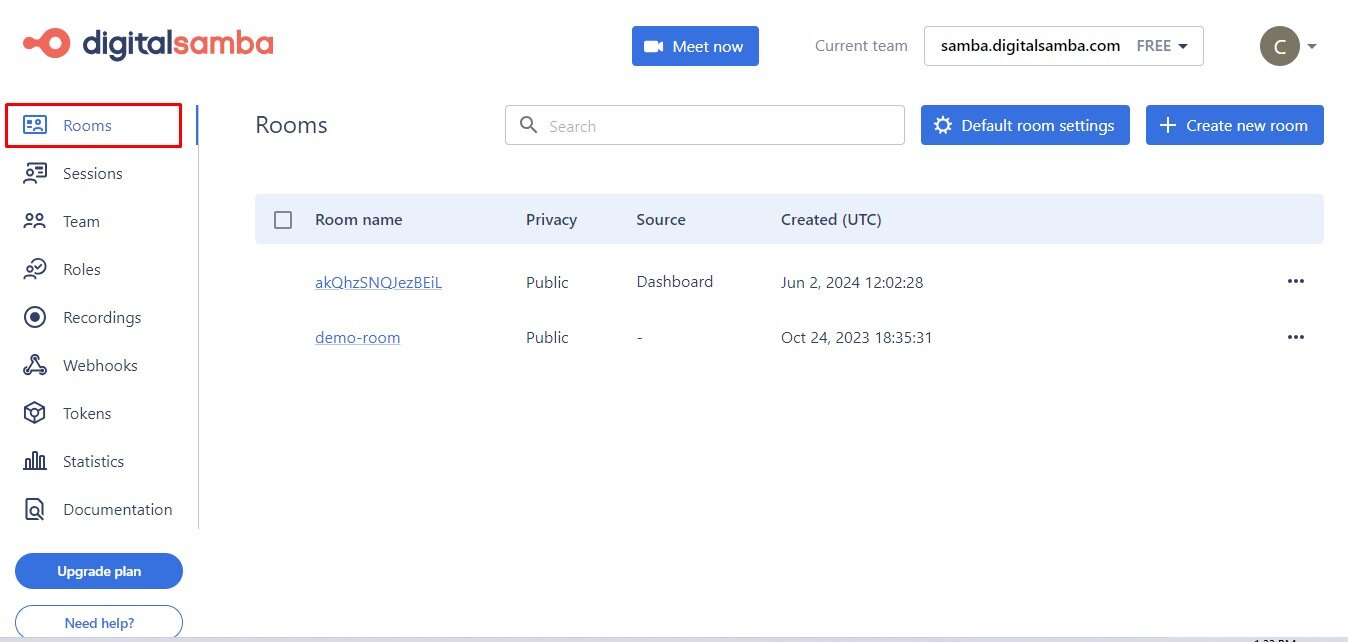
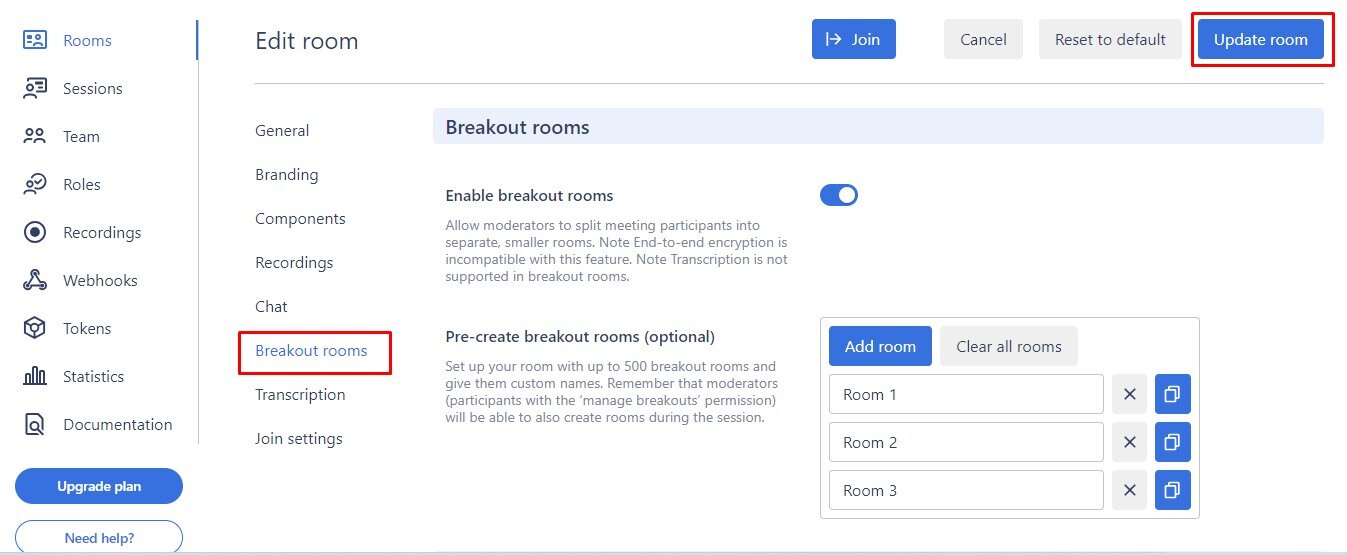
3. Click on the room where you want to use breakout rooms. This opens the Edit room screen. Scroll down to the “Breakout rooms” section and toggle “Enable breakout rooms” on. This is also where you’ll find the breakout settings described in the documentation:
- Pre-create breakout rooms (optional): set up to 500 rooms in advance and give each a custom name of up to 30 characters. Moderators can still add rooms during the session.
- Breakout room timer: show a countdown in every breakout room so groups can keep track of their remaining time.
- Set breakout timer duration: choose how long the countdown runs.
- End breakouts on timer: close all breakout rooms automatically when the countdown ends and return participants to the main room, with no manual intervention needed (release 616).
- Allow participants to freely join any breakout room: let participants enter and switch between breakout rooms on their own, without waiting for a moderator to move them.
Click the “Update room” button to save your settings. If you record your sessions, there is also a room setting that starts recording a breakout room automatically as soon as the first participant joins, provided recorders are available.
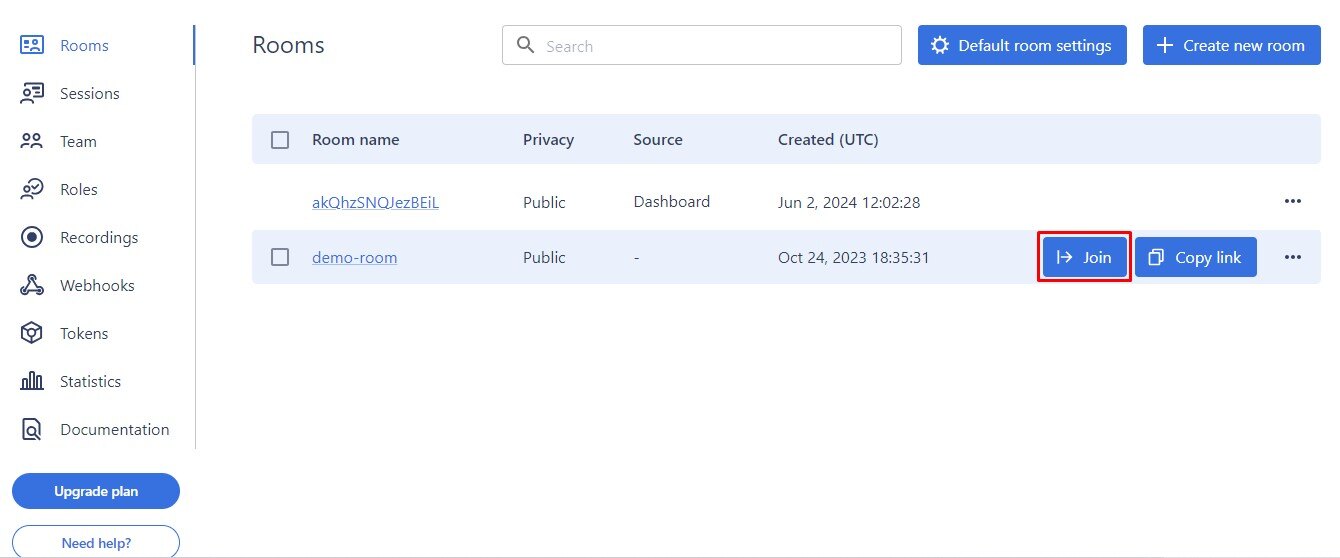
4. Start your meeting by clicking the "Join" button, and share the meeting link with the people you want to invite.
How to create breakout rooms during a meeting
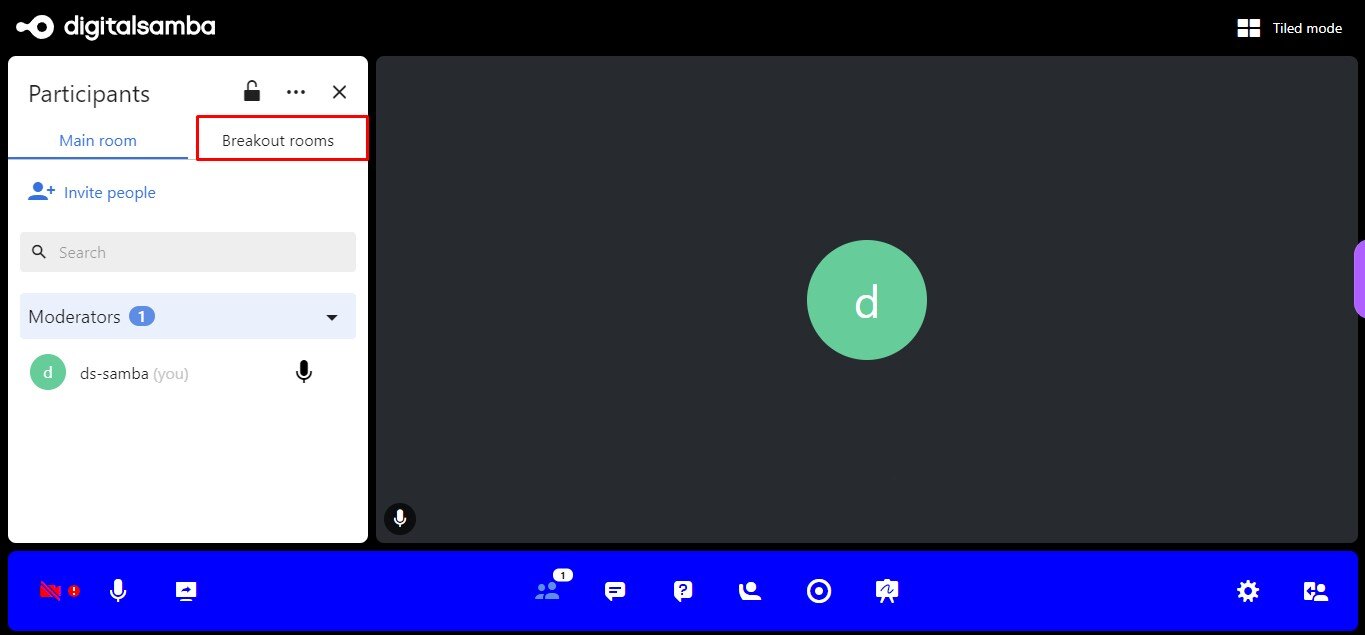
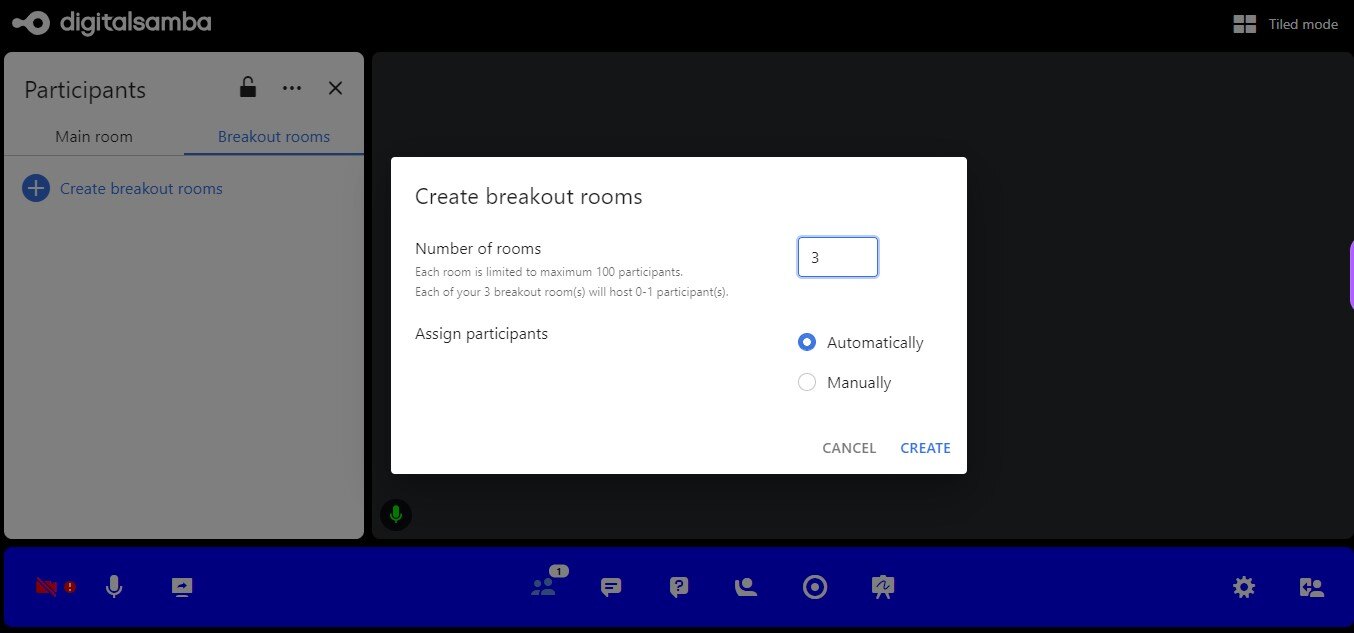
5. In the meeting window, click the Participants icon in the toolbar. The Participants panel has two tabs: "Main room" and "Breakout rooms". Open the "Breakout rooms" tab and click the "Create breakout rooms" button.
6. Enter the number of breakout rooms you want. Then choose how to assign participants: automatically, which lets the system distribute main-room participants for you, or manually, which lets you place each person yourself. Click “Create”.
7. Your rooms are now created. If you chose manual assignment, the rooms start empty, so edit the assignments until you are happy with the groups. Then click “Start breakouts” to launch the session and move assigned participants into their rooms.
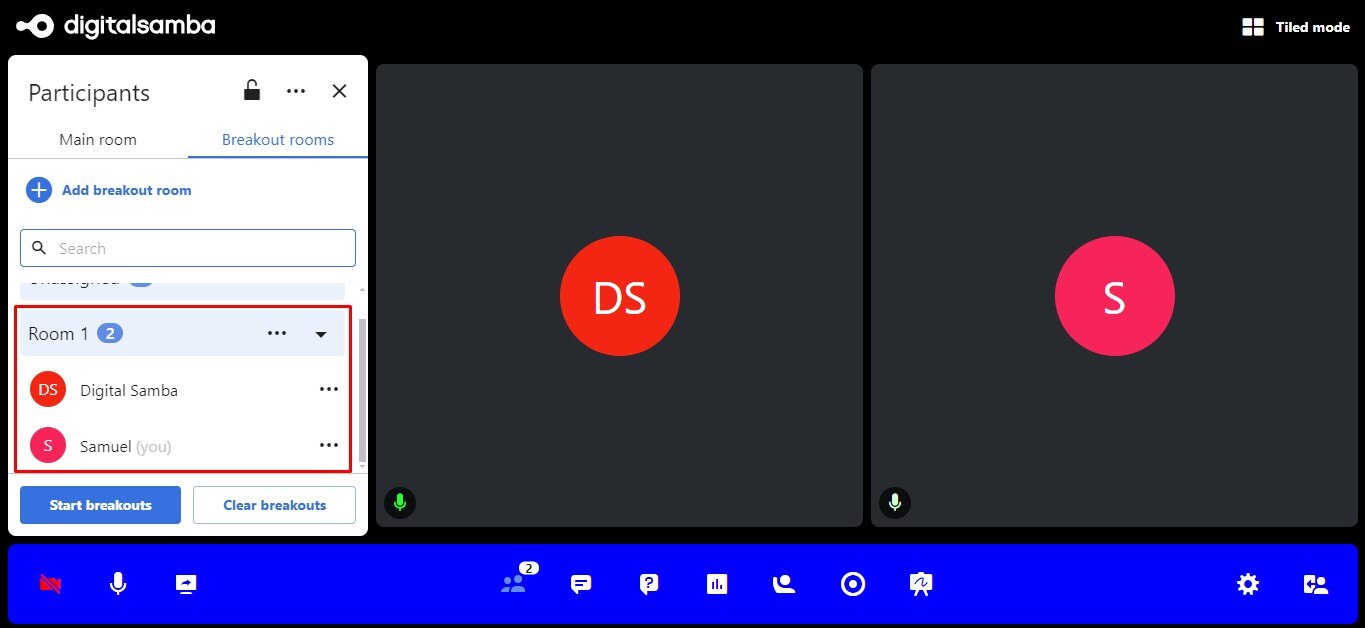
You don’t have to get everything right before pressing start. Moderators can view and update breakout settings, including the timer duration and automatic end behaviour, while the session is running, without recreating the rooms (release 638).
Managing and joining breakout rooms
Who can create and run breakouts is controlled by the “Manage breakouts” permission, which you assign through roles. Participants with this permission can create rooms, assign people, start and stop breakouts and move freely between rooms; they are not assigned to a breakout room themselves when assignment runs automatically (unless the room uses a single role). If you want certain people, such as teachers or facilitators, to run breakouts while others simply take part, set this up with custom roles.
A few details that make breakout sessions easier to run in practice:
- Joining and switching: with free movement enabled, participants choose and change rooms themselves. Otherwise, moderators assign them, and can reassign people between rooms mid-session.
- Orientation: the name of the breakout room a participant is in appears in the top bar, so nobody has to guess where they are. Ad-hoc rooms get names localised to each participant’s language, so “Room 1” shows as “Raum 1” for German speakers.
- Time pressure, visibly: when the countdown timer reaches its final five minutes, it turns red, nudging groups to wrap up.
- Moderation: moderators can remove a participant from the session directly from a breakout room, without returning them to the main room first.
For more on handling participants during a call, see our guide to selecting and switching participants in a video call.
Breakout session ideas that actually work
Once the mechanics are in place, the difference between a productive breakout session and an awkward one is the task you give each group. Some formats that consistently work well in virtual settings:
- Brainstorm and rank: each room generates ideas on the shared whiteboard for ten minutes, then picks its top three to present in the main room.
- Topic stations: assign each room a different question or problem area, matched to the expertise of the people in it, and reconvene to share conclusions.
- Case work: give every room the same case study or document from the content library and compare the solutions each group arrives at.
- Peer feedback rounds: pairs or trios review each other’s work, drafts or designs, which feels safer than critique in front of the whole call.
- Icebreakers and energisers: five minutes in random rooms with a light prompt gets people talking before the real agenda starts, especially in teams that rarely meet.
- Study or revision groups: in training and education, let groups work through exercises at their own pace while the instructor moves between rooms to help.
Set the breakout timer to match the task, and keep sessions short: two focused ten-minute rounds usually beat one meandering half hour.
Frequently asked questions
How many breakout rooms can I create in Digital Samba?
You can pre-create up to 500 breakout rooms per room in the dashboard, each with a custom name of up to 30 characters, and moderators can create additional rooms during the session.
Can participants join or switch breakout rooms on their own?
Yes. If you enable “Allow participants to freely join any breakout room” in the room settings, participants can enter and switch between breakout rooms without moderator intervention. Otherwise, a moderator assigns and moves them.
Can you share your screen in a breakout room?
Yes. Breakout rooms keep the main room’s collaboration tools, including screen sharing, chat, the whiteboard and the content library.
Do breakout rooms work with end-to-end encryption?
Yes. Since February 2025, Digital Samba breakout rooms fully support end-to-end encryption, covering video, audio, shared screens, usernames and chat messages.
Can breakout rooms be recorded?
Yes. A room setting can start recording a breakout room automatically as soon as the first participant joins, provided recorders are available.
Is transcription available in breakout rooms?
No. Transcriptions are not supported in breakout rooms.
Conclusion
Breakout rooms turn a one-way broadcast into a working session: small groups discuss, build and solve in parallel, then bring their results back to the main room. With timers, automatic closing, free movement and mid-session editing, Digital Samba gives you enough control to run them smoothly without micromanaging every minute. Enable the feature in your room settings, pick a format from the ideas above and give your next meeting a structure that gets everyone involved.
Share this

How to configure your default room settings in Digital Samba
How to Configure Your Digital Samba Rooms Using the Dashboard