

Have you ever sat in a virtual meeting, brimming with questions, only to find no easy way to ask them? Digital Samba solves that frustration with its Q&A feature, designed to turn one-sided online presentations and meetings into genuinely interactive sessions. In this guide, we cover what the feature does, how to switch it on, and how to ask, answer and organise questions – right through to exporting the full Q&A log after the session.
Table of Contents
- What is the Q&A feature?
- Why use a Q&A feature?
- Getting started with Digital Samba's Q&A feature
- Keeping the Q&A organised
- After the session: export the Q&A log
- Frequently asked questions
- Conclusion
What is the Q&A feature?
Unlike the often cluttered chat, the Q&A feature is your virtual organiser. It provides a dedicated panel where participants can ask their questions in real time, ensuring they are seen and easily accessible to the host and presenters rather than scrolling past in the conversation.
The benefits extend well beyond asking questions. Hosts can see which questions matter most to the audience, give clear and timely answers, and dismiss off-topic enquiries without derailing the discussion, so the panel stays tidy even in a busy webinar.
Participants win too. You can submit your question the moment it occurs to you, knowing it will be seen and considered by the presenter – and if your role allows it, you can even ask anonymously. You can also see what other attendees are asking and upvote the questions you want answered, which fosters a sense of community and shared learning.
Who can do what is governed by Digital Samba's roles and permissions model: asking, answering, moderating and upvoting are each controlled by a separate permission, so you can shape the Q&A around your event – from an open discussion to a tightly moderated webinar.
Why use a Q&A feature?
Using a Q&A feature in virtual meetings and webinars benefits both the participants and the hosts. Here is what it brings:
- Boost participation: participants can submit a question as soon as they think of it, sparking discussion and keeping everyone engaged without interrupting the speaker.
- Organise questions effectively: the Q&A feature centralises all questions in one dedicated panel, making them easy to track, manage and prioritise, so nothing gets lost in a busy chat.
- Keep your presentation on track: you choose when to address questions, and moderators can set off-topic ones aside for later.
- Prioritise what matters: participants can upvote the questions they most want answered, so you always see which concerns are most pressing for your audience.
- Promote inclusivity: large virtual settings can be intimidating, especially for quieter attendees. The Q&A panel gives them a calm way to take part – and participants whose role has the anonymous questions permission can ask without revealing their identity.
Getting started with Digital Samba's Q&A feature
To use Digital Samba's Q&A feature effectively, follow these steps.
Enabling Q&A
Q&A is a room component you control from the dashboard. Team owners and admins can switch it on for the whole team in the default room settings, or you can enable it for an individual room in that room's Q&A settings. If you are new to room configuration, our guide on configuring your Digital Samba rooms using the dashboard walks through the whole process. Participants whose role has the 'control room components' permission can also enable or disable Q&A on the fly while a session is running.
Starting the meeting
- Log in to your Digital Samba account or create one if you don't have one yet.
- Once logged in, navigate to the "Rooms" section in the Digital Samba dashboard. Here, you'll find your previously created rooms and have the option to create a new one.
- Initiate your meeting by clicking the "Join" button in your desired meeting room. Copy and share the meeting link with your intended participants.

- When the interface loads, enter your name and click "Join". After a brief device check, your meeting environment will be ready, including access to the Q&A feature.

Asking a question in Q&A
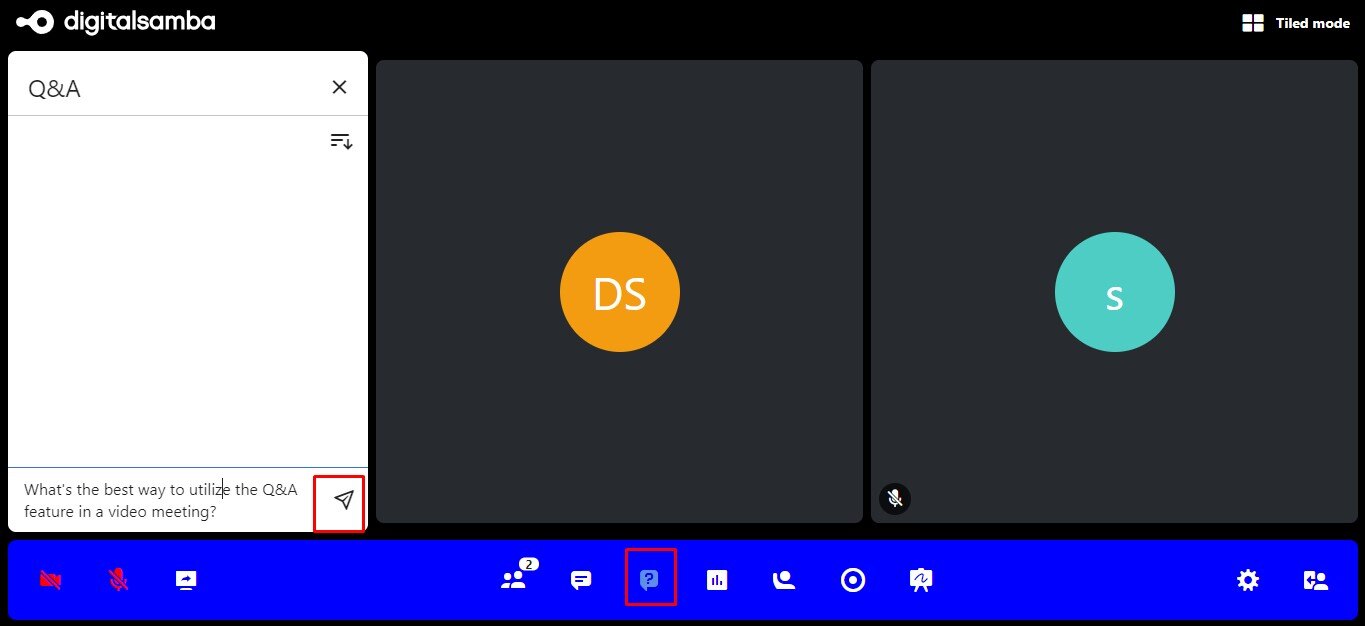
- To ask a question, simply click on the Q&A icon after joining the meeting.

- Type your question in the provided field. It will be visible to other participants and the host. If your role has the anonymous questions permission, you can ask without your name being shown.
Answering a question in Q&A
- Click on the Q&A icon to view the questions waiting for a response.
- If your role has the answer permission, you can reply in writing directly in the panel, or address the question live during the video call. Once a question is answered, it moves automatically to the Answered section.


Note for hosts: answering, moderating, upvoting and anonymous asking are each governed by a separate role permission, so you decide exactly who can do what. For detailed instructions on assigning roles and permissions in Digital Samba, please refer to our comprehensive roles and permissions documentation.
Keeping the Q&A organised
Busy sessions generate a lot of questions, and the Q&A panel keeps them under control with filters:
- All questions – the default view, showing the full discussion, open and answered questions alike.
- Open – every question still awaiting a response.
- Answered – questions move here automatically after being answered.
- Dismissed – moderators can dismiss a question, moving it instantly to this section; a dismissed question can be reopened with one click.
In the room's Q&A settings you can also choose which filter the panel opens with by default – Open, All or Answered – so attendees land exactly where you want them. And with upvoting enabled, participants vote for questions with a thumbs up and the list can be sorted by votes, letting whoever is answering prioritise by audience interest.
After the session: export the Q&A log
The questions don't vanish when the meeting ends. You can export the full Q&A log, including upvote data, in JSON or TXT format – either from the dashboard or programmatically through the Q&A export endpoint of the REST API, which can also narrow the export down to a single session. That makes it easy to follow up on unanswered questions, feed FAQs back into your content, or keep a record of what your audience cares about.
Frequently asked questions
Who can answer questions in the Q&A?
Participants whose role has the answer permission. Moderation – such as dismissing questions or deleting other participants' questions and answers – requires its own permission, so you can separate presenters from moderators.
Can participants ask questions anonymously?
Yes. Anonymous asking is controlled by a dedicated role permission, so you decide which roles can submit questions without revealing their identity.
What happens to a question once it has been answered?
It moves automatically to the Answered section of the Q&A panel. Off-topic questions can be dismissed by moderators into a separate Dismissed section and reopened later with one click.
Can I save the questions after the meeting?
Yes. The Q&A log, including upvotes, can be exported in JSON or TXT format via the dashboard or the REST API, for the whole room or for a single session.
Conclusion
Digital Samba's Q&A feature is more than a technical add-on; it is a practical way to transform your virtual meetings. It gives every attendee a clear path to being heard, gives hosts the filters, upvotes and permissions to keep the discussion focused, and leaves you with an exportable record of everything your audience asked.
So ditch the one-sided presentations and amplify communication in your next digital session. Sign up to Digital Samba Embedded for free or talk to our sales team about embedding interactive video conferencing with Q&A into your software or app.
Share this

Custom Roles in the Digital Samba Developer API: A How-To Guide
Selecting and Switching Participants in a Digital Samba Video Call


